
Why the warning appears
Sonavi is in early access and is still building Windows publisher reputation.
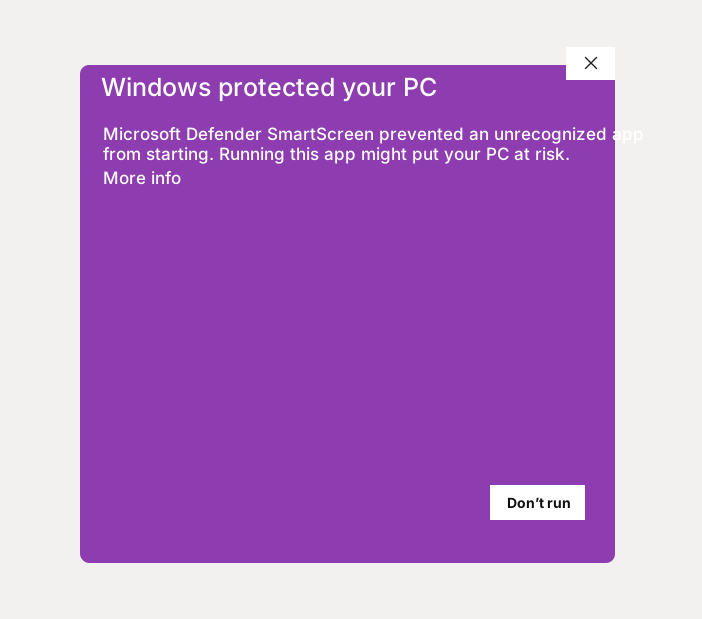
Because of that, Windows may show an installation prompt, an unknown-publisher notice, or a SmartScreen-style prompt even when the installer came from the official Sonavi download page.
What the Windows prompt looks like
What to check before installing
Use this sequence before continuing through the Windows prompt:
- Download Sonavi only from the official Sonavi website download page.
- Trust only downloads that start from sonavi.app and redirect to updates.sonavi.app.
- Avoid installers sent through random file-sharing links, message attachments, or unofficial mirrors.
- Confirm the installer matches the current release information on the website, including the SHA-256 checksum when the website shows one.
- Continue only when Windows shows the expected Sonavi publisher.
- If the installer came from the official download path, continue through the Windows warning and finish the installation.
Privacy during use
Sonavi is built around local handling of audio and transcription work on your device.
We do not receive your audio files or transcription contents through the normal product workflow, so the Windows installation warning is about publisher verification, not about Sonavi sending your spoken content to us.
FAQs
Does the Windows warning mean Sonavi is unsafe?
Not by itself. The warning usually means Windows does not have enough publisher reputation or code-signing information for the installer. Use the official Sonavi download page, trust only sonavi.app and updates.sonavi.app, and avoid unofficial copies.
Why not pay for the certificate now?
Sonavi is building installer reputation as early-access usage grows. The official download page remains the best place to get the current build.
Does Sonavi receive my recordings or transcripts?
No. Audio and transcription content are handled locally on your device in the normal product workflow.
Use the official installer
Only continue through a Windows installation warning when the installer came from sonavi.app or updates.sonavi.app and Windows shows the expected Sonavi publisher. Do not trust copied installers from unofficial sources.